
Paste a link
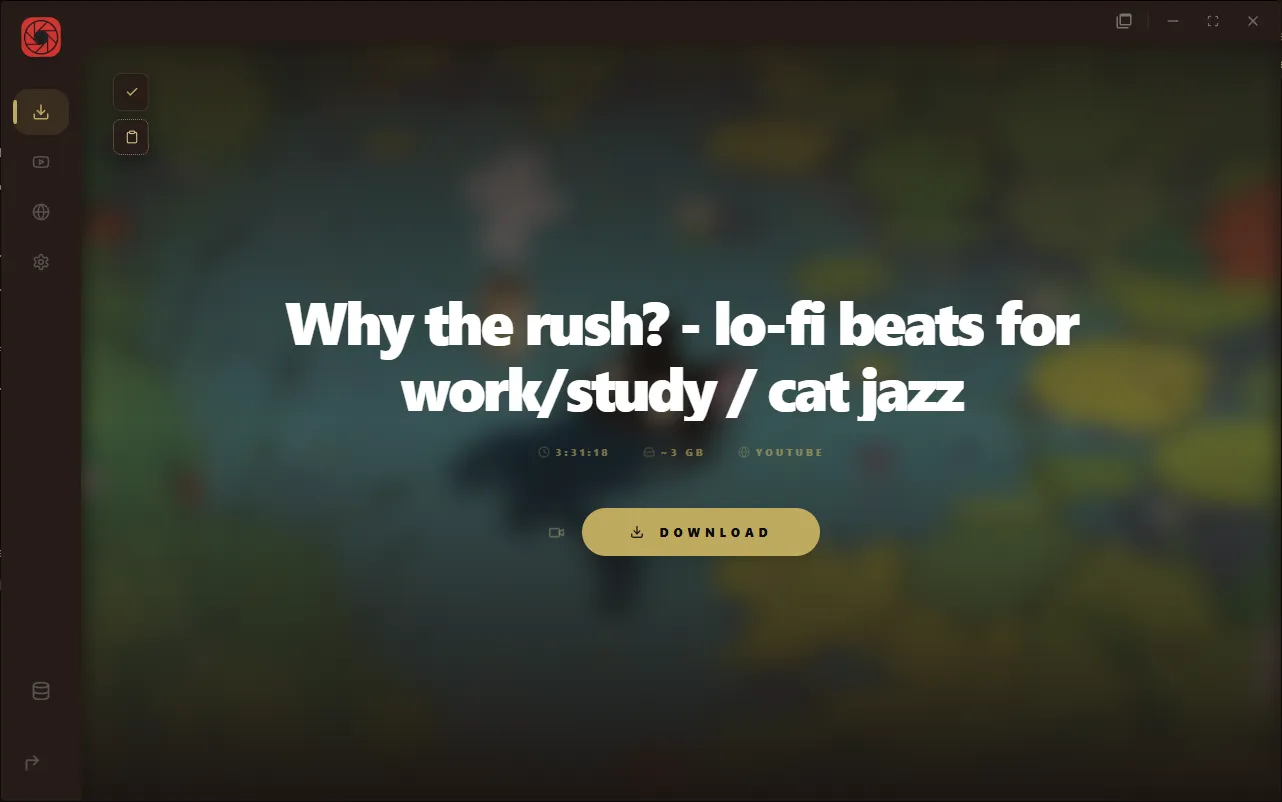
Downloading a video is the main thing RuForge does, and it starts with a URL.
- Copy a YouTube video link from your browser. Any standard
youtube.com/watch?v=...oryoutu.be/...link works. - In RuForge, click the URL input field at the top of the Downloader tab (or just press Ctrl+V anywhere on the page).
- Paste the link. RuForge immediately starts fetching the video metadata: title, thumbnail, and estimated file size.
You will see the video title and thumbnail appear in the hero area within a few seconds. The size estimate shows how much space the download will take on disk.
Choose format
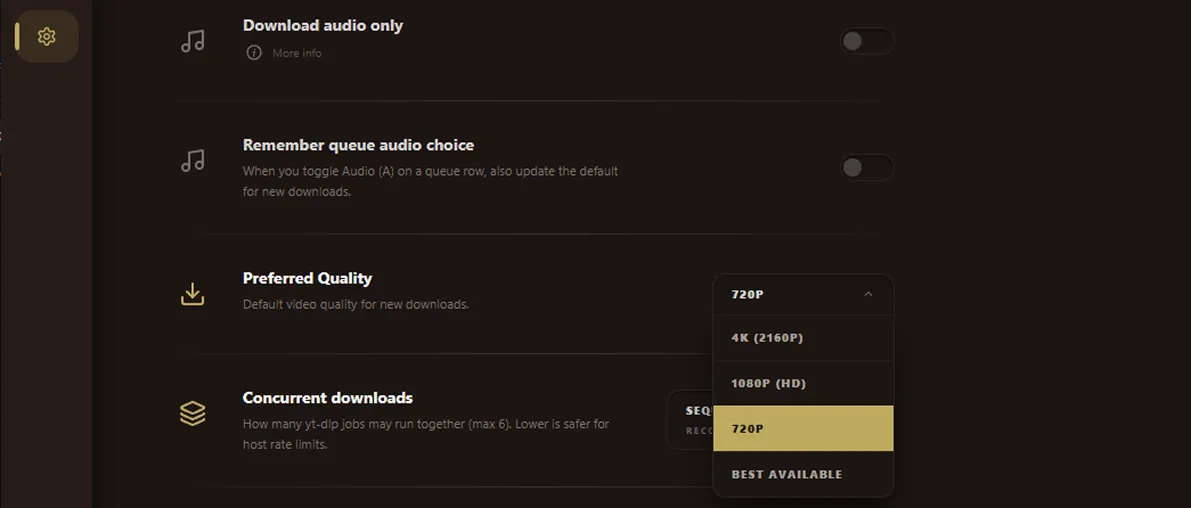
Before you hit download, you can choose what format you want.
- Video (default): Downloads the best available video and audio, muxed into a single file (usually MP4). This is what most people want.
- Audio only: Extracts just the audio track as an M4A file. Much smaller file size, perfect for music or podcasts.
Toggle between Video and Audio using the switch next to the download button. The size estimate updates immediately so you can see the difference before committing.
Watch progress
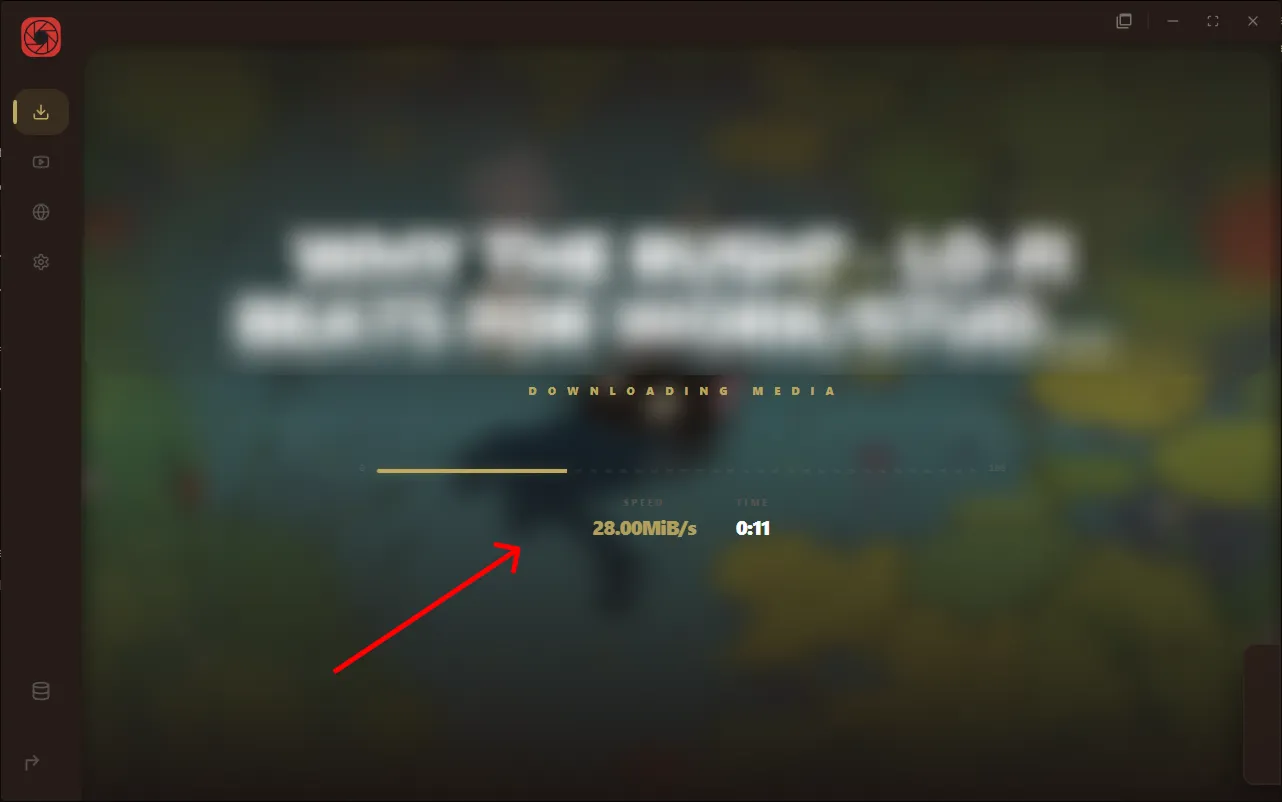
Once you start the download, the hero area turns into a live progress display.
- A progress bar shows how far along the download is, with percentage markers at each end.
- Download speed and estimated time remaining appear below the bar.
- If the video needs post-processing (like merging separate video and audio streams), the status changes to "Processing..." while ffmpeg handles the mux.
You can keep using the app while downloads run. The floating queue drawer in the bottom-right corner shows all active and queued jobs. Click it to expand and see thumbnails, titles, and individual progress for each download.
Find it in your library
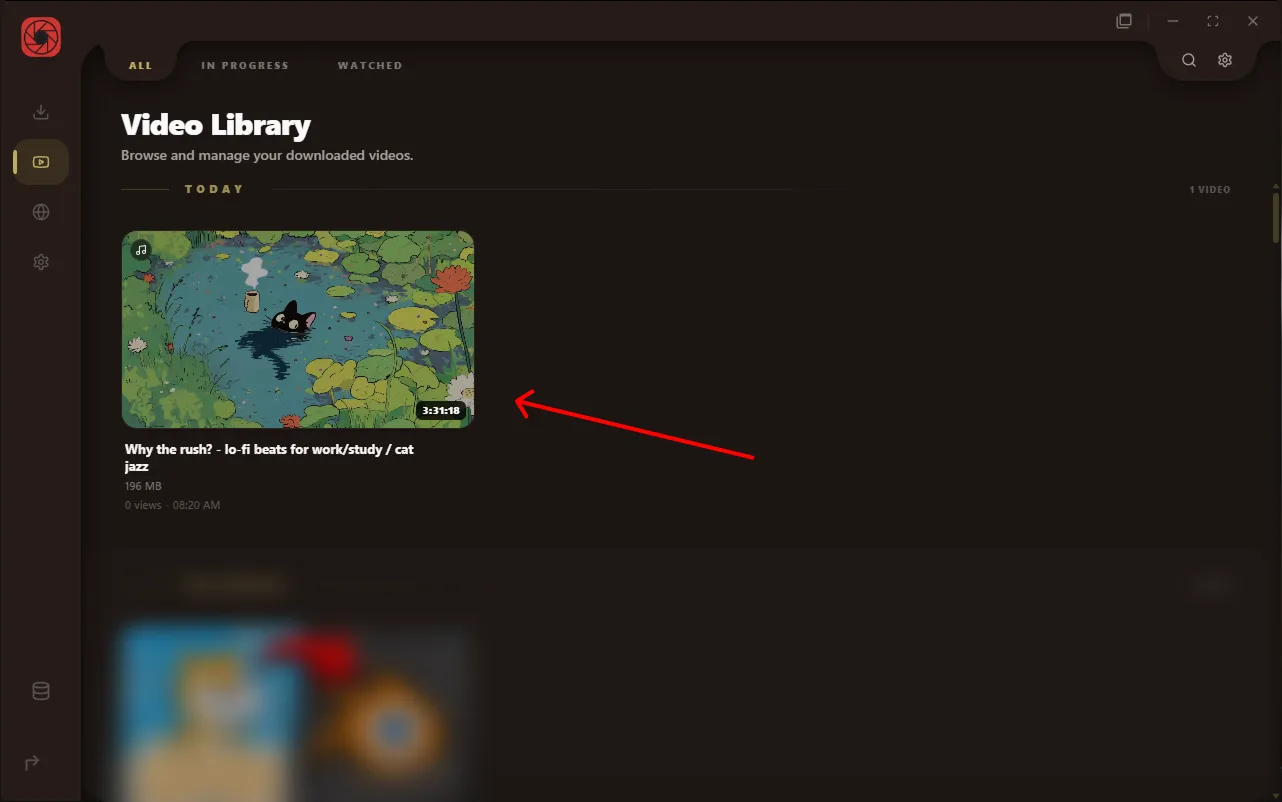
When a download finishes, the file lands in your download folder and immediately shows up in the Media Library tab.
- Click Media Library in the left sidebar.
- Your new download appears as a card with a thumbnail, title, and duration.
- Click the card to open it in the player. That is it.
If you downloaded a playlist, the videos are grouped together as a stack card in the library. Click the stack to expand it and see individual items.